Tuesday, 12 April 2022

ASP.NET Core - Best practices (tips and tricks)

 Hello friends,

 In this article, I will explain what are the best practices when we use the .NET core

We will talk about some of the best practices with tips and tricks while working with ASP.NET Core. 

Here are some of the best .NET Core practices that can help developers to bring down the business logic of their clients into reality.

1. Inline methods

Inline methods improve app performance by passing arguments, reducing jumps, and restoring registers. Remember, one method containing a throw statement by the JIT (just-in-time) compiler will not be inline. To resolve it, use a static helper process that encompasses a throw statement.

2. Use Asynchronous Programming : (ASYNC – AWAIT)

To make an application more dependable, faster, and interactive, Asp.Net Core leverages the same Asynchronous programming approach. In our code, we should employ end-to-end asynchronous programming.

For an example:

Don’t:

public class WrongStreamReaderController : Controller

{

    [HttpGet("/home")]

     public ActionResult<HomeData> Get() 

    { 

        var json = new StreamReader(Request.Body).ReadToEnd(); 

        return JsonSerializer.Deserialize<HomeData>(json); 

    } 

}

Do:

public class CorrectStreamReaderController : Controller

{ 

    [HttpGet("/home")] 

    public async Task<ActionResult<HomeData>> Get()

    { 

        var json = await new StreamReader(Request.Body).ReadToEndAsync(); 

        return JsonSerializer.Deserialize<HomeData>(json); 

    } 

}

3. Optimize Data Access

To improve the performance of the application by optimizing its data access logic. Most applications are fully dependent on a database and they have to get data from the database, process it, and display it.

Suggestions:

  • Call all data access through the APIs asynchronously.
  • Do not get data that is not required in advance.
  • When retrieving data for read-only reasons in Entity Framework Core, use non-tracking queries.
  • Try to use aggregate and filter LINQ queries like with Where, Select, or Sum statement, so that filter thing can be performed by the database.

4. Always Use Cache

Caching is one of the popular and proven ways of improving performance. We should cache to store any data that is relatively stable. ASP.NET Core offers response caching middleware support, which we can use to enforce response caching. We can use response caching to improve output caching and It can cache web server responses using cache-related headers to the HTTP response objects. Also, Caching large objects avoids costly allocations.

Caching technique:

  • In-memory caching
  • Distributed cache
  • Cache tag helper
  • Distributed cache tag helper

A memory cache can be used or a distributed cache like NCache or Redis Cache can be used.

5. Response Caching Middleware Components

If response data is cacheable, this response caching middleware monitors and stores responses and serves them from the response cache. This middleware is available to Microsoft.AspNetCore.ResponseCaching package.

public void ConfigureServices(IServiceCollection services)


{


    services.AddResponseCaching();


    services.AddRazorPages();


}

6. Enable Compression

By reducing response size we can improve the performance of the application because it transfers less data between the server and client. You can take the benefits of response compression in ASP.NET Core to reduce the requirements of bandwidth and lower the response. In ASP.NET Core it acts as sure-shot middleware components.

public void ConfigureServices(IServiceCollection services_collection) 

{

        services_collection.AddResponseCompression();

        services_collection.Configure<GzipCompressionProviderOptions>

        (opt =>

        {

            opt.Level = CompressionLevel.Fastest;

        });

}

7. Bundling and Minification

Using this we can reduce the number of server trips. Try to upload all client-side assets at once, such as styles and JS/CSS. Using minification, you can first minify your files and then bundle them into one file that loads faster and decreases the number of HTTP requests.

8. Use Content Delivery Network (CDN)

Despite the fact that the speed of light is more than 299000 km/s, which is extremely fast, it also helps us keep our data near to our consumers. If there are only numbered CSS and JS files then it is easy to load on the server For bigger static files, you can think of using CDN. The majority of CDNs have many locations and serve files from a local server. The website performance can be enhanced by loading files from a local server.

9. Load JavaScript from the Bottom

Unless they are required earlier, we should always strive to load our JS files at the end. Your website will load faster as a result, and users will not have to wait long to see the information.

10. Cache Pages or Cache Parts of Pages

Rather than considering the database and re-rendering a complex page, we could save it to a cache and use that data to serve later requests.

[OutputCache(Duration=20, VaryByParam="none")] 

Public ActionResult HomeIndex() { 

        return View();

}

11. Use Exceptions only When Necessary

Exceptions should be rare. The catch and throw of exceptions are slow in comparison to other code flow patterns. Exceptions are not used to regulate the flow of the program. Take into account the logic of the program to identify and resolve exception-prone scenarios.

 Throw or catch exceptions for unusual or unexpected conditions. You can use App diagnostic tools like Application Insights to identify common exceptions in an app and how they perform.

12. Setting at Environment Level

When we develop our application we have to use the development environment and when we publish our application we have to use the production environment. With this, The configuration for each environment is different and it’s always the best practice.

It is extremely easy to do when we use .NET Core. The appsettings.json file can be found in our project folder. We can see the appsettings.Development.json file for the environment of the development and the appsettings.Production.json file for the environment of the production if we extend it.

13. Routing

We can provide detailed names, and we should use NOUNS instead of VERBS for the routes/endpoints.

Don’t:

[Route("api/route- employee")] 

public class EmployeeController : Controller

 {

        [HttpGet("get-all-employee")]

        public IActionResult GetAllEmployee() { } 

        [HttpGet("get- employee-by-Id/{id}"]

        public IActionResult GetEmployeeById(int id) { } 

}

Do:

[Route("api/employee")]

public class EmployeeController : Controller

{

    [HttpGet]

    public IActionResult GetAllEmployee() { }

    [HttpGet("{id}"] 

    public IActionResult GetEmployeeById(int id) { } 

}

14. Use AutoMapper to Avoid Writing Boilerplate Code

AutoMapper is a convention-based object-to-object mapper that requires little configuration. Basically, when we want separation between domain models and view models.

To configure AutoMapper and we can map domain models and view models like this.

public class EmployeeService 

{

    private EmployeeRepository employeeRepository = new EmployeeRepository(); 

    public EmployeetDTO GetEmployee(int employeeId) 

    {

        var emp = employeeRepository.GetEmployee(employeeId); 

        return Mapper.Map<EmployeeDTO>(emp);

    } 

}

15. Use Swagger

Swagger is a representation of a RESTful API that allows interactive documentation, discoverability, and generation of Client SDK support.

Setting up a Swagger tool usually takes a couple of minutes. We get a great tool that we can use to document our API.

16. Logging

Structured logging is when we keep a consistent, fixed logging format. Using structured logs, it’s easy to filter, navigate and analyze logs.

Asp.Net Core has structured logs by default and to keep the entire code consistent, the Asp.Net team will have to make it consistent. The web server communicates with the application. Serilog is an excellent logging framework that can be used. logging

17. Do Refactoring for Auto-generated Code

In .NET Core, there are a lot of auto-generated codes, so set aside some time to examine the logic flow, and because we know our application better, we can improve it a little.

18. Delete Unused Profiles


  • Delete unused custom middleware components from startup.cs
  • Remove any default controllers you aren’t using.

Trace and remove all redundant comments used for testing from the views.Remove the unwanted white spaces as well


 Happy programming!!

Don’t forget to leave your feedback and comments below!

Regards

Sujeet Bhujbal

--------------------------------------------------------------------------------

 Blog: www.sujeetbhujbal.com

Personal Website :-http://sujeetbhujbal.wordpress.com/ 

CodeProject:-http://www.codeproject.com/Members/Sujit-Bhujbal 

CsharpCorner:-http://www.c-sharpcorner.com/Authors/sujit9923/sujit-bhujbal.aspx

Linkedin :-http://in.linkedin.com/in/sujitbhujbal 

Twitter :-http://twitter.com/SujeetBhujbal 

------------------------------------------------------------------------------
Thursday, 24 February 2022

History of .NET Core Versions

  In this article, I will explain what are the different.NET core versions

The below table will show details of.NET core versions

Version  Release Date  Development/Editor Tool  Support  
.Net Core 1.0  Jun-27-2016  Visual Studio 2015
 updated version 3  
1.0  
.Net Core 1.1  Nov-18-2016  Visual Studio 2015,
2017  
1.0,1.1  
.Net Core 2.0  Aug-14-2017  Visual Studio 2017
Version 15.3  
1.0,1.1,2.0  
.Net Core 2.1
 Long Term Support  
May-30-2018  Visual Studio 2017
 Version 15.7  
1.0,1.1,2.0,2.1  
.Net Core 2.2  Dec-04-2018  Visual Studio 2017 Version15.9  1.0,1.1,2.0,2.1,2.2  
.Net Core 3.0  Sep-23-2019  Visual Studio 2019  
Version 16.3  
1.0,1.1,2.0,2.1,
2.2,3.0  
.Net Core 3.1
(3 yr Long-term support)  
Dec-03-2019  Visual Studio 2019  
Version 16.4  
1.0,1.1,2.0,2.1,
2.2,3.0,  
3.1  
.NET 5.0  Nov-10-2020  Visual Studio 2019  
Version 16.8  
1.0,1.1,2.0,2.1,
2.2,3.0,  
3.1,5.0  
.NET 6.0 1
 (3 yr Long-term support)  
Nov-08-2021  Visual Studio 2022  
Version 17.0  
6.0  
.NET 7.0  2022-11(projected)   -
.NET 8.0  2023-11(projected)   -


Happy programming!!

Don’t forget to leave your feedback and comments below!

Regards

Sujeet Bhujbal

--------------------------------------------------------------------------------

 Blog: www.sujeetbhujbal.com

Personal Website :-http://sujeetbhujbal.wordpress.com/ 

CodeProject:-http://www.codeproject.com/Members/Sujit-Bhujbal 

CsharpCorner:-http://www.c-sharpcorner.com/Authors/sujit9923/sujit-bhujbal.aspx

Linkedin :-http://in.linkedin.com/in/sujitbhujbal 

Twitter :-http://twitter.com/SujeetBhujbal 

------------------------------------------------------------------------------


Wednesday, 9 February 2022

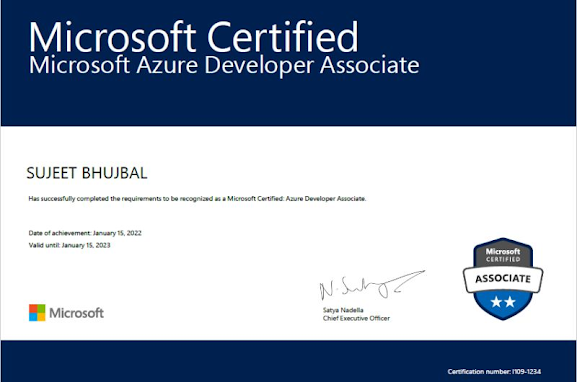
How I Passed Microsoft Certification AZ 204 Azure Developer Associate Exam

 In this article, I will explain how I passed Microsoft certification Az 204 Azure developer associate exam


1. What AZ 204 Azure Developer Associate Exam

 A candidate for this certification should have 1-2 years of professional development experience and experience with Microsoft Azure. In addition, the candidate for this role should have the ability to program in a language supported by Azure and proficiency in Azure SDKs, Azure PowerShell, Azure CLI, data storage options, data connections, APIs, app authentication and authorization, compute and container deployment, debugging, performance tuning, and monitoring.


2.  Why Get Microsoft Certified?

Microsoft Certification is based on industry-defined roles and on the skills needed to perform those roles. All the educational resources for certification at Microsoft Learn are aligned to these roles. 

That’s what makes Microsoft Certification so valuable. It demonstrates that you’re proficient in the specific, real-world skills associated with recognized industry roles. 


3. Different Microsoft Certification Paths for Different Technical Roles


sujeetbhujbal


4. Passing AZ 204 - Microsoft Certified Azure Developer

On May 15th Jan 2022, I took the AZ 204 Azure Developer Associate certification exam. I passed it on the first try!


If you are a .net developer then AZ204 is good for you.  I received the voucher from my organization


5. Pearson VUE-Proctored Exams Experiences


You need to install OnVue application for the online test. Pearson OnVUE application, copy the new Access code; Only this time, a proctor contacted me shortly after I uploaded all the required photos. She asked me again to cover my monitors 

I showed her that my monitors have been unplugged and she was happy with that. She released my exam and everything went smoothly after that. She even contacted me during my exam to ask me to remove my hand from my mouth

It took me more than 1 hour just to try to start the exam yesterday.

So, in total, 30 minutes just to “check-in” and start my exam…


Finally, I finished my real exam in 1 hour 4 minutes, got an 82% first try. I


6. Preparing for Microsoft AZ 204 Exam


The AZ 900 Azure Fundamentals exam does not really require any programming skills, but familiarization of the cloud computing basics and working in the Microsoft Azure platform are important.  


The exam questions are focused on how you would solve any cloud-related use case scenarios as a software engineer or cloud engineer.  This is important. 


Also, I brought below Udemy courses for examination

https://www.udemy.com/course/microsoft-azure-from-zero-to-hero-the-complete-guide/ 


Finally, When You Pass, Be #ProudToBeCertified!


 Happy programming!!

Don’t forget to leave your feedback and comments below!

Regards

Sujeet Bhujbal

--------------------------------------------------------------------------------

 Blog: www.sujeetbhujbal.com

Personal Website :-http://sujeetbhujbal.wordpress.com/ 

CodeProject:-http://www.codeproject.com/Members/Sujit-Bhujbal 

CsharpCorner:-http://www.c-sharpcorner.com/Authors/sujit9923/sujit-bhujbal.aspx

Linkedin :-http://in.linkedin.com/in/sujitbhujbal 

Twitter :-http://twitter.com/SujeetBhujbal 

------------------------------------------------------------------------------


Wednesday, 29 December 2021

Visual Studio 2022 New Features and Upgradation

 In this article, I will explain what are the new features of VS 2022 and how to upgrade Visual studio from 2019 to VS2022


Visual Studio 2022, the latest iteration of Microsoft’s integrated development environment (IDE), was released in November 2021. Compared to Visual Studio 2019, the two are very similar—at first glance, at least. For example, the menus received only slight tweaks.  UI is same as VS 2019 only some color code has changes

For example, Visual Studio 2022 is the first Visual Studio that is 64-bit—but they certainly haven’t rushed the move from 32-bit (Windows XP had a 64-bit version available back in 2005!).


Download visual Studi0: https://visualstudio.microsoft.com/vs/  


Upgrading to Visual Studio 2022

I moved over from Visual Studio 2019 to Visual Studio 2022. Solutions and Projects just open; there isn’t the upgrade path of previous versions.  

Microsoft is giving Git much higher priority than its own TFS version control. Incidentally, TFS changed its name to Azure DevOps Server in 2020 (read more about that), though TFS is still easier to pronounce. Team Explorer, 


C# 10.0

There’s nothing major in C# 10 beyond a collection of small improvements. A lot of it is code simplification, with global and implicit usings and removing the need for namespaces to nest code when the file only has one namespace. 


Improvements in .NET 6

There are significant speed improvements, particularly in file I/O but also throughout (more details of changes in this Microsoft blog entry).  

One of the more significant changes is improvement in JSON handling. Microsoft started this in .NET 5, and .NET 6 continues it with new features, including serialization and deserialization to and from streams. If you use Newtonsoft for JS


NET Productivity tooling


Number of productivity tools are added in VS2022 to improve developer experience, and reduce the errors. Code refactoring now provides the option for updating the existing function for any addition of new parameter or overloading the same function by adding new parameter to it.  Track value source option will provide developer the complete analysis of value the variable is holding. This will definitely ease out debugging experience in visual studio.


Windows is refreshing (windows 11) and definitely, this might have motivated VS team to change the icons to look more brighter and refresh. The icons in VS2022 are refreshed and it brings more clarity of its usage, for light and dark modes. Along with icons the default editor font has been changed to Cascadia code for better code readability.


64-Bit Application

For the first time, Visual Studio 2022 offers a 64-bit application, and no longer has a 4 GB limitation of memory for the primary devenv.exe process. If you want to use a 32-bit application, you can run and debug the application.

Open, edit, run, and debug the largest and most complex solutions without running out of memory.

Unrestricted access to all PC memory results in better performance and fewer out-of-memory errors. Microsoft says it makes every part of the workflow faster and more efficient – from loading solutions to debugging F5.

. Better Usability

The new user interface is refreshed and modernized, and utilizes lighter icons for the light and dark versions of the interface. Users now have hundreds of options to customize with changes - reducing complexity and decreasing the cognitive load. Look for these additions as well:

  • Updated icons for better clarity, consistency, readability, and contrast
  • Cascadia Code increases readability with a new fixed-width font and improved themes
  • Integration with Accessibility Insights detects accessibility issues before the software reaches end-users
  • Customizatize the VS experience with IDE settings and the ability to synchronize settings between devices


Enhanced Debugging

Visual Studio 2022 is a friend to the developer, with the new debugging tool that diagnose issues quickly. You can use async visualizations, automatic analyzers, time travel debugging, and more.

This November, Visual Studio 2022 will be compatible with GrapeCity's .NET products, including Spread.NET v15, ComponentOne, GrapeCity Documents, and ActiveReports.NET.


Conclusion

The latest Visual Studio hasn’t really altered that much, other than the move to 64-bit, but given all of the small enhancements in C# and other languages, .NET 6 and so on, it’s definitely worth the upgrade. If you are using .NET 5, the Hot Reload feature is probably enough justification by itself to upgrade. 


Happy programming!!

Don’t forget to leave your feedback and comments below!

Regards

Sujeet Bhujbal

--------------------------------------------------------------------------------

 Blog: www.sujeetbhujbal.com

Personal Website :-http://sujeetbhujbal.wordpress.com/ 

CodeProject:-http://www.codeproject.com/Members/Sujit-Bhujbal 

CsharpCorner:-http://www.c-sharpcorner.com/Authors/sujit9923/sujit-bhujbal.aspx

Linkedin :-http://in.linkedin.com/in/sujitbhujbal 

Twitter :-http://twitter.com/SujeetBhujbal 

------------------------------------------------------------------------------

Tuesday, 6 July 2021

How to benchmark C# code using BenchmarkDotNet

In this article, I will explain How to benchmark C# code using BenchmarkDotNet


 BenchmarkDotNet is a lightweight, open-source, powerful .NET library that can transform your methods into benchmarks, track those methods, and then provide insights into the performance data captured.

 It is easy to write BenchmarkDotNet benchmarks and the results of the benchmarking process are user friendly as well.


Why benchmark code?

A benchmark is a measurement or a set of measurements related to the performance of a piece of code in an application. 

Benchmarking code is essential to understanding the performance metrics of the methods in your application. It is always a good approach to have the metrics at hand when you’re optimizing code. It is very important for us to know if the changes made in the code have improved or worsened the performance. 

Benchmarking also helps you to narrow in on the portions of the code in the application that needs refactoring.


Create a console application project in Visual Studio

First off, let’s create a .NET Core console application project in Visual Studio. Assuming Visual Studio 2019 is installed in your system, follow the steps outlined below to create a new .NET Core console application project in Visual Studio.

  1. Launch the Visual Studio IDE.
  2. Click on “Create a new project.”
  3. In the “Create new project” window, select “Console App (.NET Core)” from the list of templates displayed.
  4. Click Next.
  5. In the “Configure your new project” window shown next, specify the name and location for the new project.
  6. Click Create.


Install the BenchmarkDotNet NuGet package

To work with BenchmarkDotNet you must install the BenchmarkDotNet package. You can do this either via the NuGet Package Manager inside the Visual Studio 2019 IDE, or by executing the following command at the NuGet Package Manager Console:

Install-Package BenchmarkDotNet


Steps for benchmarking code using BenchmarkDotNet

To run BenchmarkDotNet in your .NET Framework or .NET Core application you must follow these steps:

  1. Add the necessary NuGet package
  2. Add Benchmark attributes to your methods
  3. Create a BenchmarkRunner instance
  4. Run the application in Release mode

Create a benchmarking class in .NET Core


Run the benchmark in your .NET Core application

If you run the application in debug mode, here’s the error message you’ll see:

Hence you should run your project in the release mode only. To run benchmarking, specify the following command at the Visual Studio command prompt.

dotnet run -p BenchmarkDotNetDemo.csproj -c Release

Analyze the benchmarking results

Once the execution of the benchmarking process is complete, a summary of the results will be displayed at the console window. The summary section contains information related to the environment in which the benchmarks were executed, such as the BenchmarkDotNet version, operating system, computer hardware, .NET version, compiler information, and information related to the performance of the application.

A few files will also be created in the BenchmarkDotNet.Artifacts folder under the application’s root folder. Here is a summary of the results. 


BenchmarkDotNet is a nice tool that provides a simple way to make an informed decision about the performance metrics of your application. In BenchmarkDotNet, invocation of a method that has the Benchmark attribute set is known as an operation. An iteration is a name given to a collection of several operations.


Happy programming!!

Don’t forget to leave your feedback and comments below!

Regards

Sujeet Bhujbal

--------------------------------------------------------------------------------

 Blog: www.sujeetbhujbal.com

Personal Website :-http://sujeetbhujbal.wordpress.com/ 

CodeProject:-http://www.codeproject.com/Members/Sujit-Bhujbal 

CsharpCorner:-http://www.c-sharpcorner.com/Authors/sujit9923/sujit-bhujbal.aspx

Linkedin :-http://in.linkedin.com/in/sujitbhujbal 

Twitter :-http://twitter.com/SujeetBhujbal 

------------------------------------------------------------------------------